
One of the most common questions I get on TPT is regarding the editable PDF files I have in my shop. It seems many buyers are not familiar with how to edit an editable PDF file. Well, no worries! Here’s your easy tutorial on how to edit those editable PDF files! Editing an editable PDF is a straightforward process, but it does require the right tools and methods. Let’s break down the steps in detail to ensure you can make the most out of these resources.
Before diving into the editing process, it’s crucial to understand what an editable PDF is. Unlike standard PDFs, which are typically fixed documents, editable PDFs allow users to click on certain fields and fill them in. This feature is particularly useful for forms, worksheets, and interactive content.
Additionally, many users may wonder about the compatibility of editable PDFs with different devices and software. For example, while Adobe Acrobat Reader is the recommended application, it’s essential to note that mobile devices might have different functionalities when it comes to editing PDFs. For instance, not all mobile PDF readers support editing features, which can lead to frustration for users trying to fill out forms on their phones or tablets.
UPDATE: Unfortunately, Adobe has removed the properties bar referenced in this tutorial. You can still edit all the text via this method, but if you need to edit fonts in one of my products, the best option at this time is to use the PowerPoint version. If you do not have PowerPoint, you can upload the .pptx file to Google Slides or open it in Keynote. I apologize for this inconvenience, but it is beyond my control. Thank you for your understanding.
UPDATE: Unfortunately, Adobe has removed the properties bar referenced in this tutorial. You can still edit all the text via this method, but if you need to edit fonts in one of my products, the best option at this time is to use the PowerPoint version. If you do not have PowerPoint, you can upload the .pptx file to Google Slides or open it in Keynote. I apologize for this inconvenience, but it is beyond my control. Thank you for your understanding.
UPDATE: Unfortunately, Adobe has removed the properties bar referenced in this tutorial. You can still edit all the text via this method, but if you need to edit fonts in one of my products, the best option at this time is to use the PowerPoint version. If you do not have PowerPoint, you can upload the .pptx file to Google Slides or open it in Keynote. I apologize for this inconvenience, but it is beyond my control. Thank you for your understanding.

When clicking in those text fields, be mindful of what the creator intended. Some fields may be locked or designed for specific input types. For example, a field might only accept numerical entries, which can be a common requirement in forms used for surveys or feedback.
Click in any of those text fields. Then right-click in a blank area of the toolbar at the top of the screen. Select Properties Bar from the drop down menu.
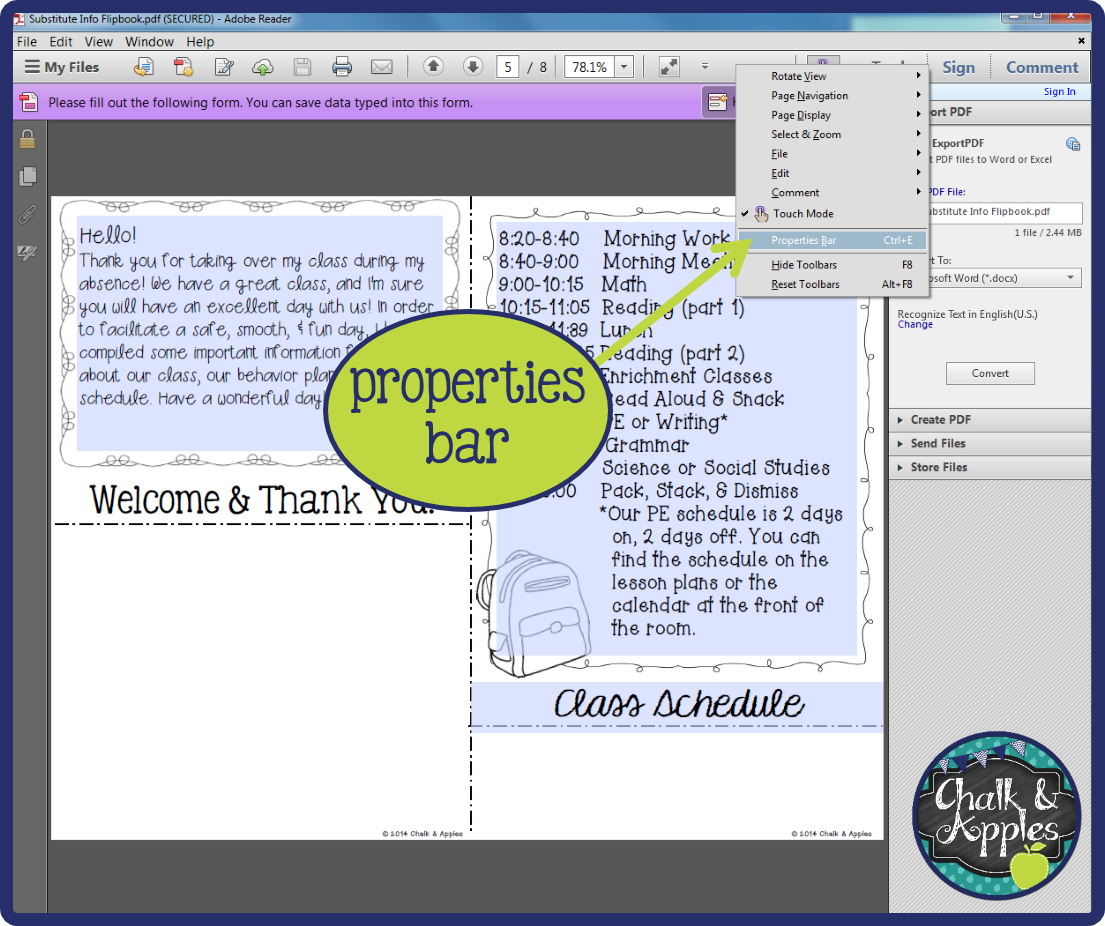
The Properties Bar will appear near the top of the screen. (If the bar that appears says “No Current Selection,” the creator of the product has not given buyers permission to use this feature.)
Besides simply changing the text, the editing options also allow for a variety of customization. For example, aligning text properly can enhance the overall appearance of the document, particularly in professional or academic settings. Furthermore, incorporating colors effectively can make your PDFs not only more visually appealing but also help in categorizing information. For instance, using different colors for headers and footers can improve readability and organization.
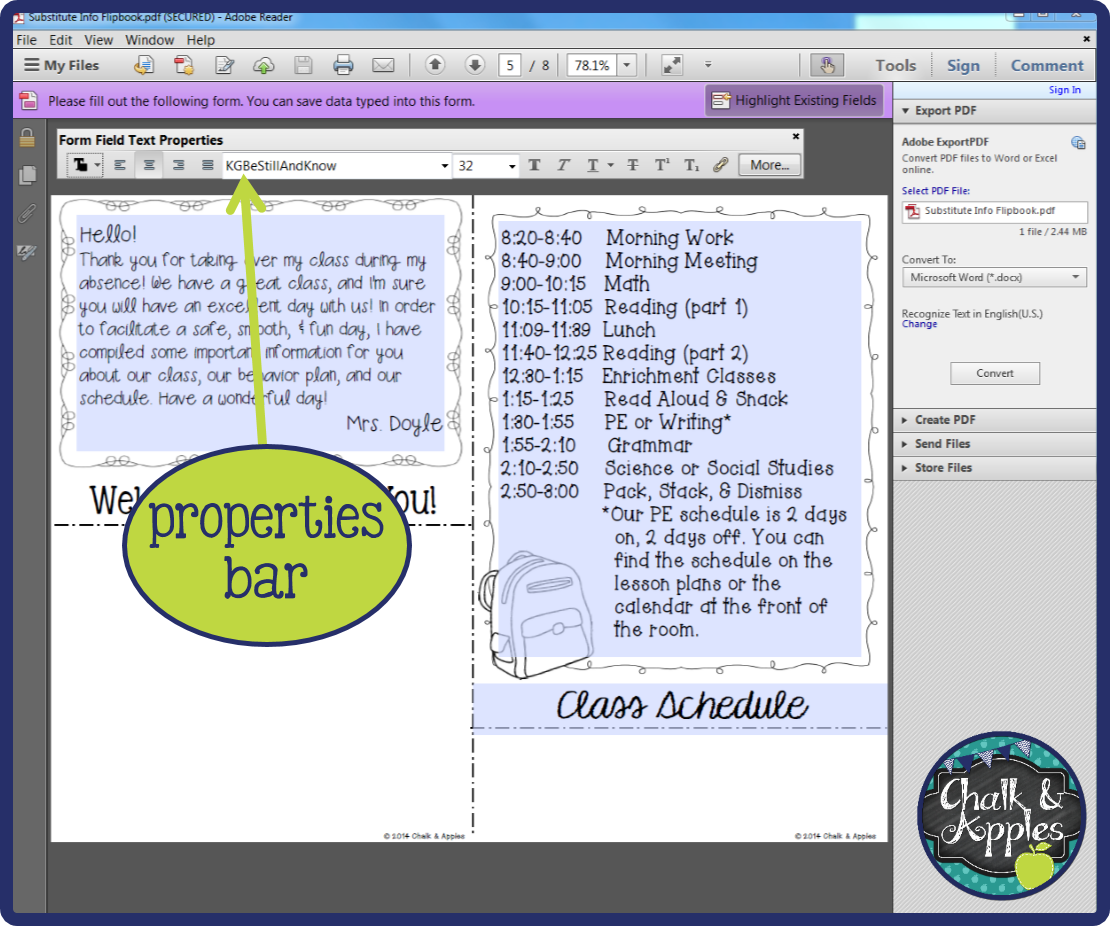
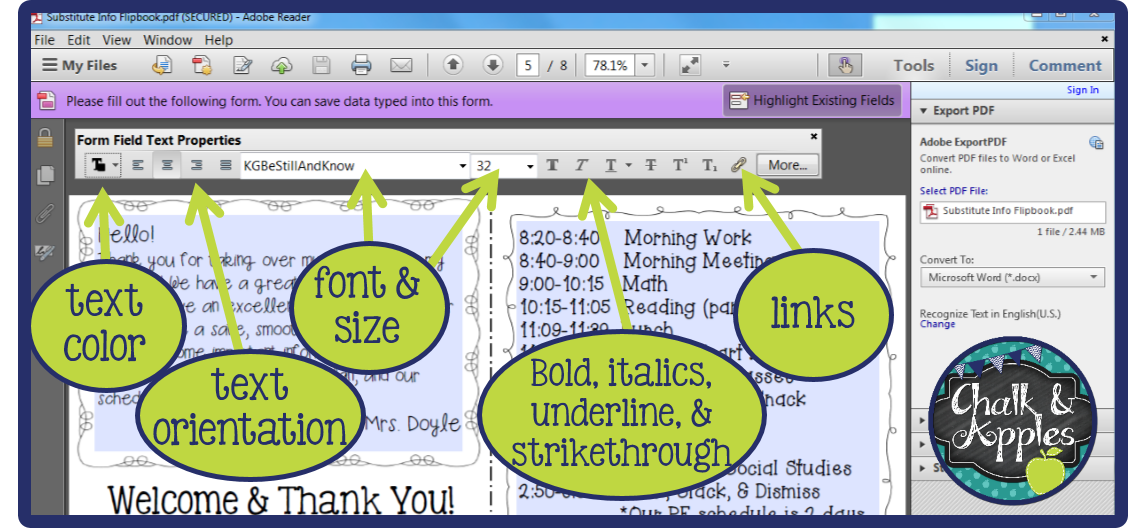
Here’s a quick look at all of your options. You can change the text color, orientation (right, left, center), font and size, font properties (bold/italics/underline), and add links. Fonts that were embedded in the file by the creator will still work on your computer, even if you do not have them installed.

In the PARAGRAPH tab, you can align the text vertically and horizontally and adjust line spacing.

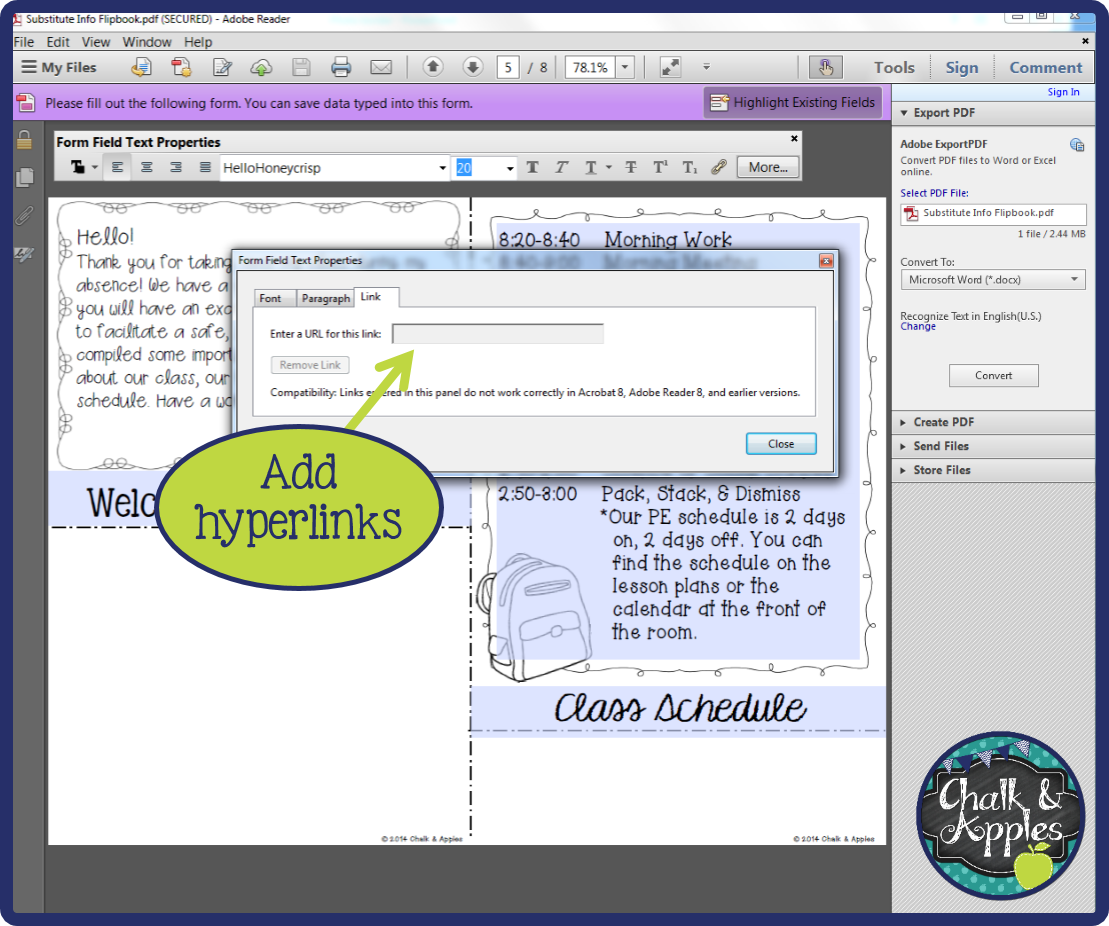
In the LINKS tab, you can add hyperlinks to the selected text.
Once you have your formatting just like you want it, you can copy the text and paste it into another text field to keep the same formatting. Then just change the text, and you’re good to go!
It’s also beneficial to save copies of your editable PDFs under different names as you make changes. This way, you can always revert to an earlier version if necessary. For instance, if you are editing a document that requires multiple updates over time, maintaining various iterations of that file can save you from losing important content.
Remember, practice makes perfect! The more you work with editable PDFs, the more comfortable you will become with the various editing tools available. You might want to try creating your own editable PDF from scratch as a project. This hands-on experience will enhance your understanding and ability to manipulate these files effectively.
In conclusion, editable PDFs can be incredibly useful for educators, professionals, and anyone who needs to fill out forms digitally. By using Adobe Acrobat Reader and following the steps I’ve outlined, you can edit these files with ease. Keep practicing, and you’ll find that editing PDFs becomes second nature. So go ahead, explore the world of editable PDFs, and make the most of your digital documents!
FYI – This tutorial was created using Adobe Acrobat Reader. The editable product pictured is my Substitute Need-To-Know Flipbook, available in my TPT store.